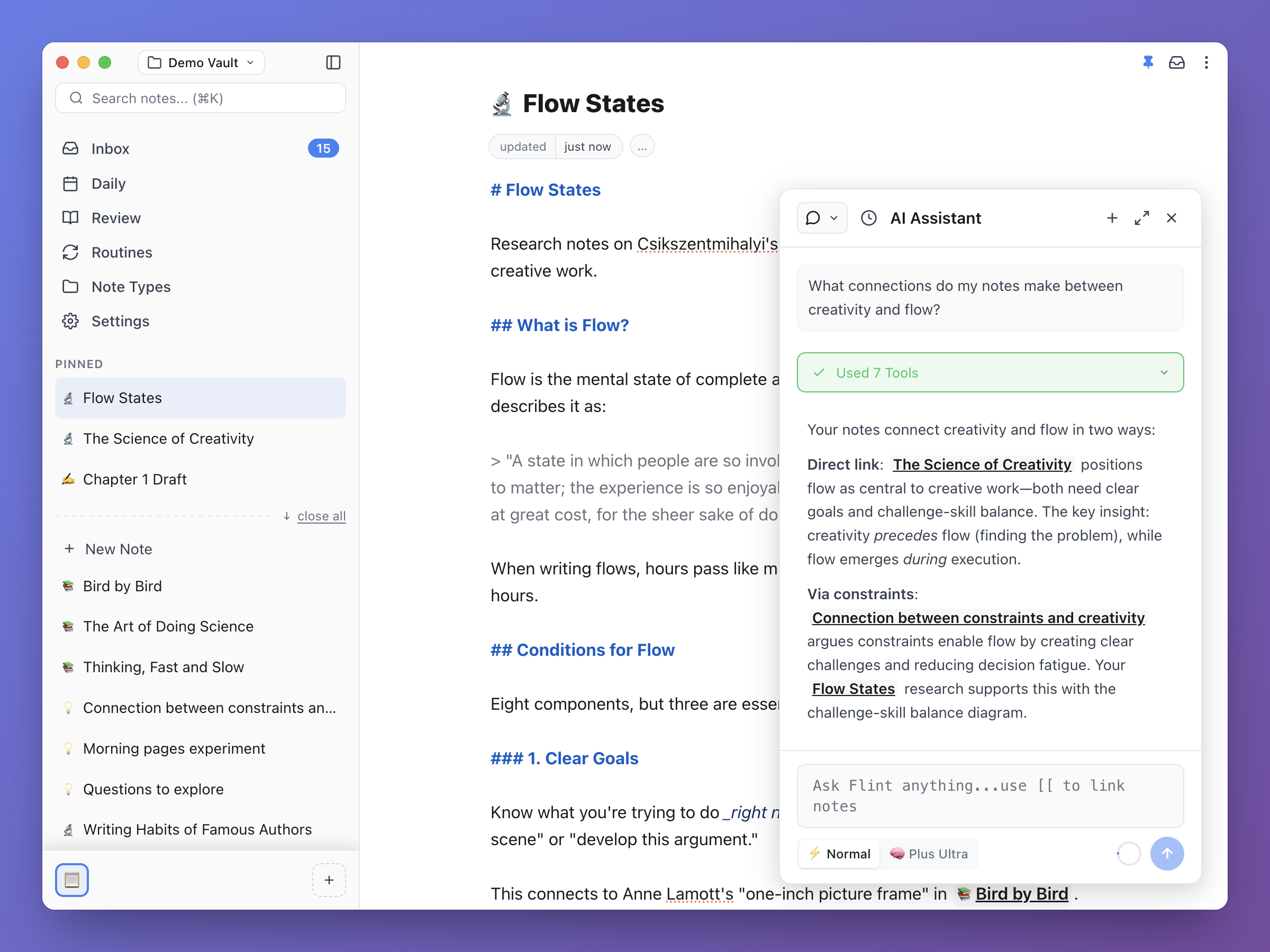
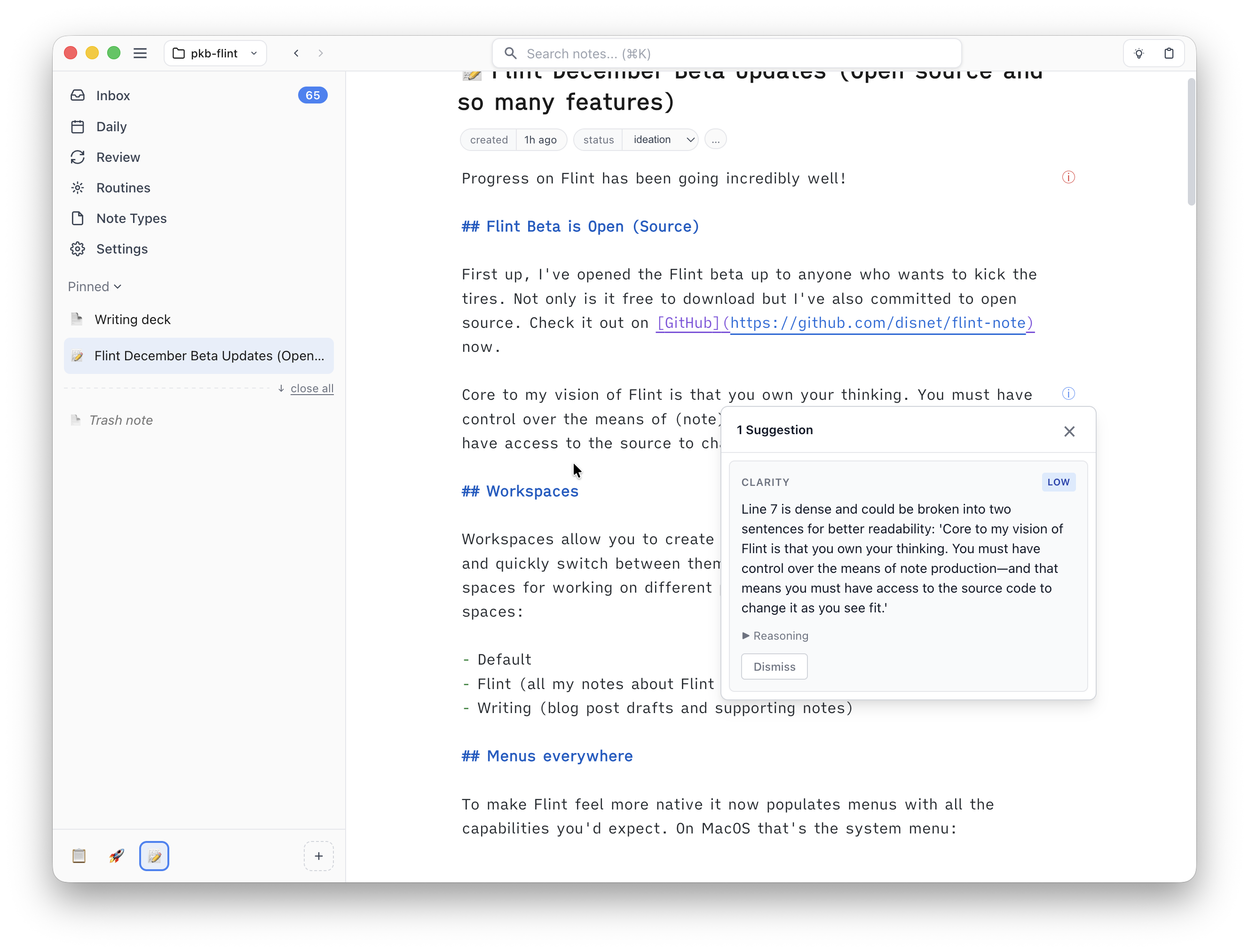
Big changes with Flint! Over the holidays I completely reworked just about every part of Flint.
The UI has been totally refreshed, making every view cleaner and easier to navigate.
Under the hood, the way Flint stores data has also changed. Previously we used a local SQLite database with a two-way sync to markdown files. This worked well enough (though the sync code was gross and had unresolved bugs) but the architecture made it hard to implement features I really wanted like versioning and syncing.
So, the new Flint now uses Automerge to store notes, while still keeping the two-way markdown file syncing of the previous version. Automerge is a CRDT library that makes it possible to sync data across devices without needing to store all your data in a central server. The current rework doesn't including syncing yet but guess what feature I'll be working on soon 😆.
The other capability Automerge gives us is the ability to easily make a web app that stores all your note data locally in the browser. You can try it out here to see the new interface and features without installing anything. The only capabilities that aren't included at the moment are markdown file syncing, review mode, and the AI agent.
I think Flint is really starting to come together. More to come soon but take a look and let me know what you think!
Progress on Flint has been going incredibly well! I'm recently back home from a great trip to Japan and with the release of Claude Opus 4.5 I've kinda been going beast mode on Flint development. Here's a roundup of all the features I've managed to ship in the past couple of weeks.
First up though, the Flint beta is now open to anyone who wants to kick the tires. You can download it here.
Not only is it free to download but I've also committed to open source. Flint's code is now free and available on GitHub.
Core to my vision of Flint is that you own your thinking and for that to be true you must also have control over the means of (note) production. So open source it is.
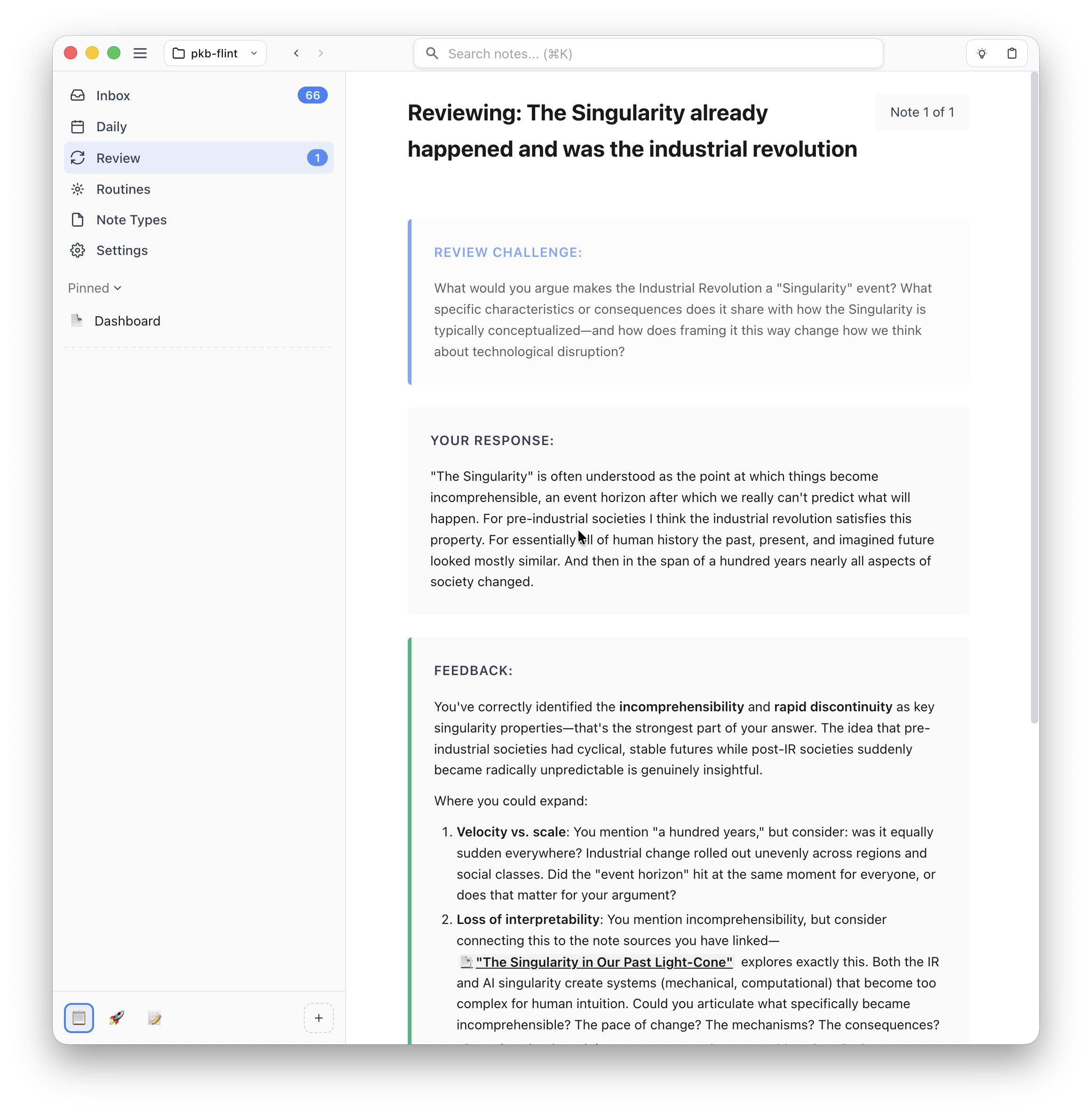
Review mode is a key piece of the "resurface" design pillar I've written about previously, which is all about helping you meaningfully re-engage with your notes over time.
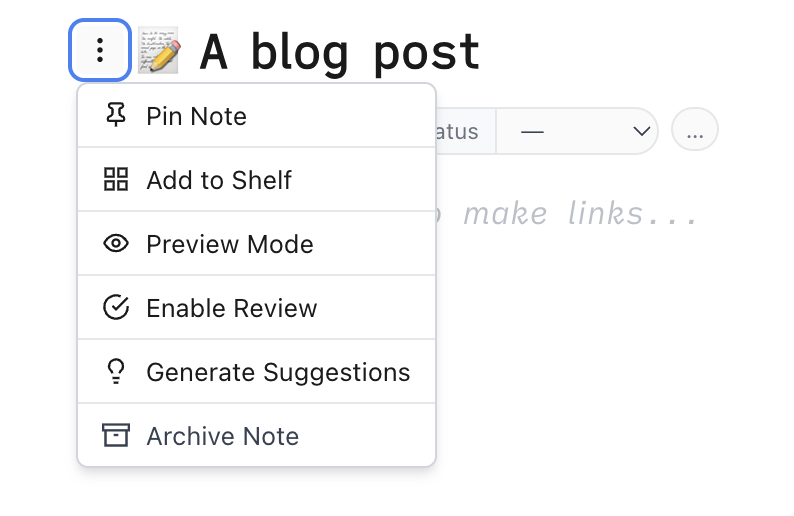
The way it works is any note you click "Enable Review" on is added to your review queue in the new "Review" system view. When you start a review the agent reads your notes and generates a question to get you to meaningfully engage with the material.
You can then write a response and mark how well your engagement with the note went. Based on your response the note is scheduled for review sometime in the future.
I think this mode is a pretty big deal. Spaced repetition is a well-studied and powerful technique for learning but creating effective prompts has always been a challenge. I think integrating the prompt and scheduling interface into your note-taking system unlocks something special.
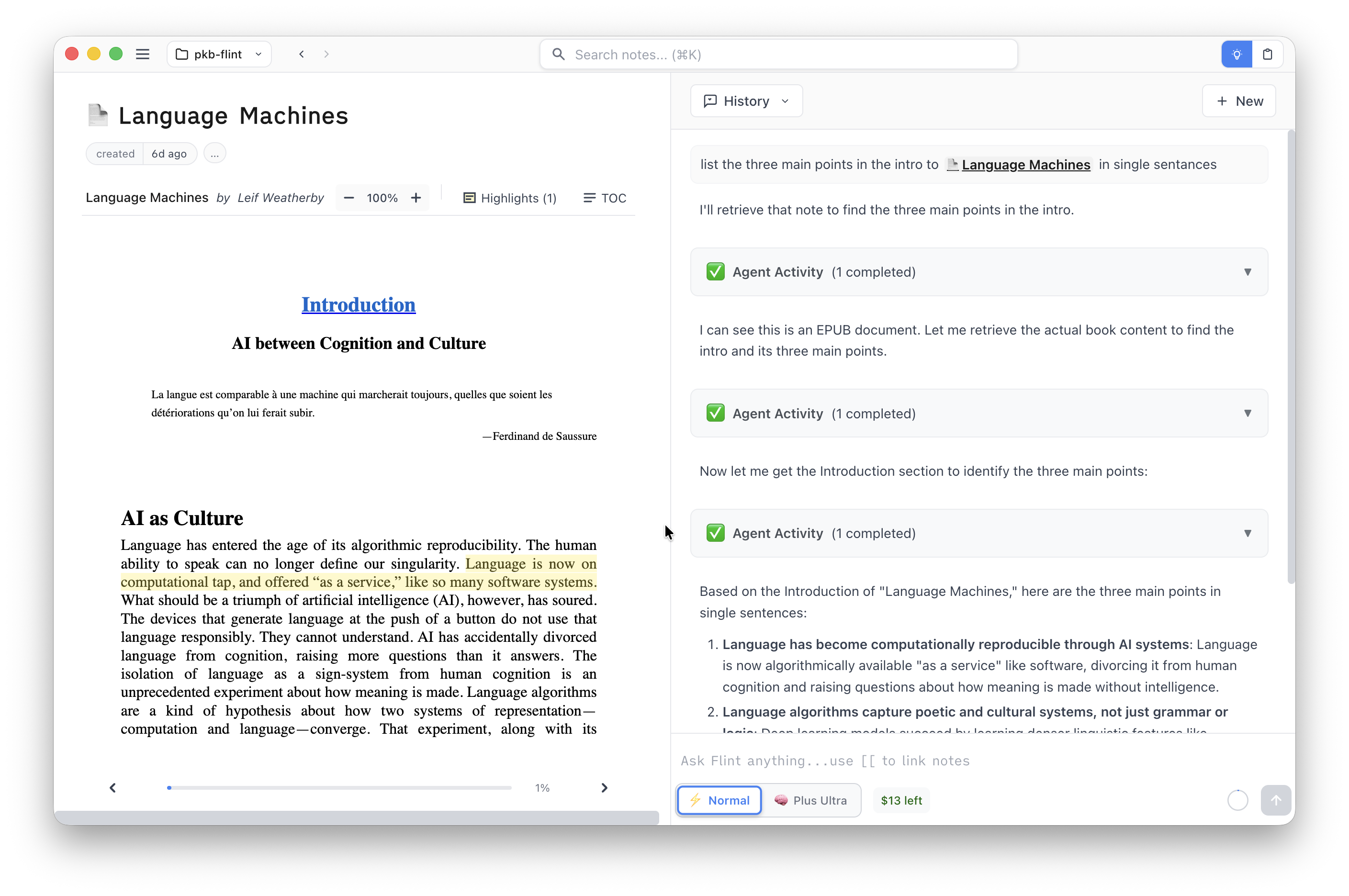
To help create more material for you to review, you can now add EPUBs, PDFs, and web pages to Flint. Each file type has its own optimized viewer and each viewer has support for making highlights. And, of course, the agent can read your books too.
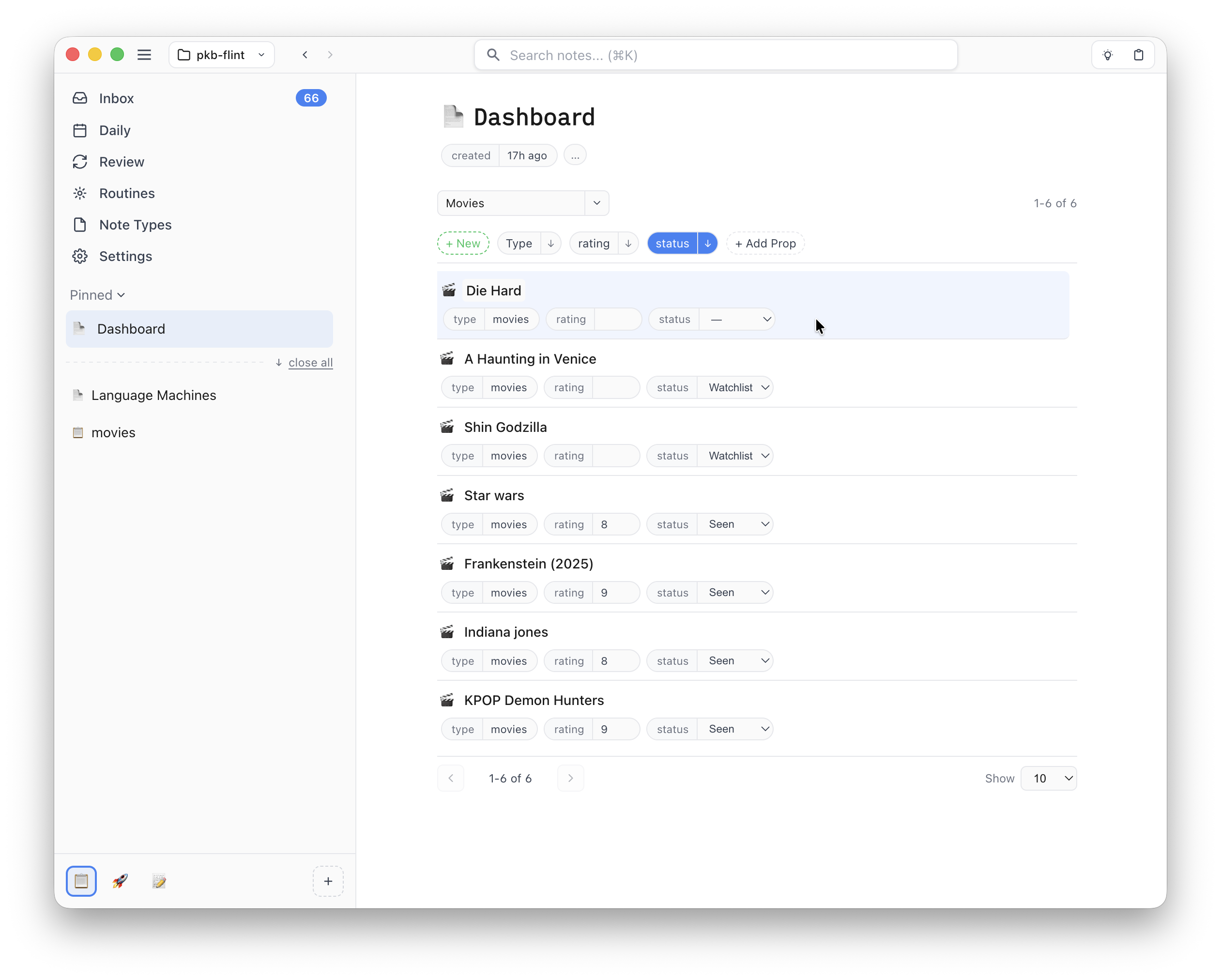
To help you keep track of all the notes you will now be creating I've also added Decks. Decks allow you to build dashboards of notes that match specific filters (a bit like Notion's Databases or Obsidian's Bases). Use it to track things like reading/watch lists, todo lists, etc.
For example, if you create a "movie" note type with properties like "rating" and "status" you can create a deck to track your favorites (type = movie AND rating >= 8) and another deck to track your watchlist (type = movie AND status != "seen"). No need to memorize the query syntax though, the UI lets you easily build complex filters and the agent is also very capable at building decks for you.
Each row in a deck is live—you can directly edit the title and properties to quickly keep your notes up to date.
Workspaces are another feature to help you keep track of all your notes. They allow you to create focused groups of Pinned/Recent notes and quickly switch between them with keyboard shortcuts. Workspaces are great for creating dedicated groups of notes for managing different projects. As an example, I currently use the following spaces:
Default (unorganized, in-the-moment notes)
Flint (my notes about Flint development)
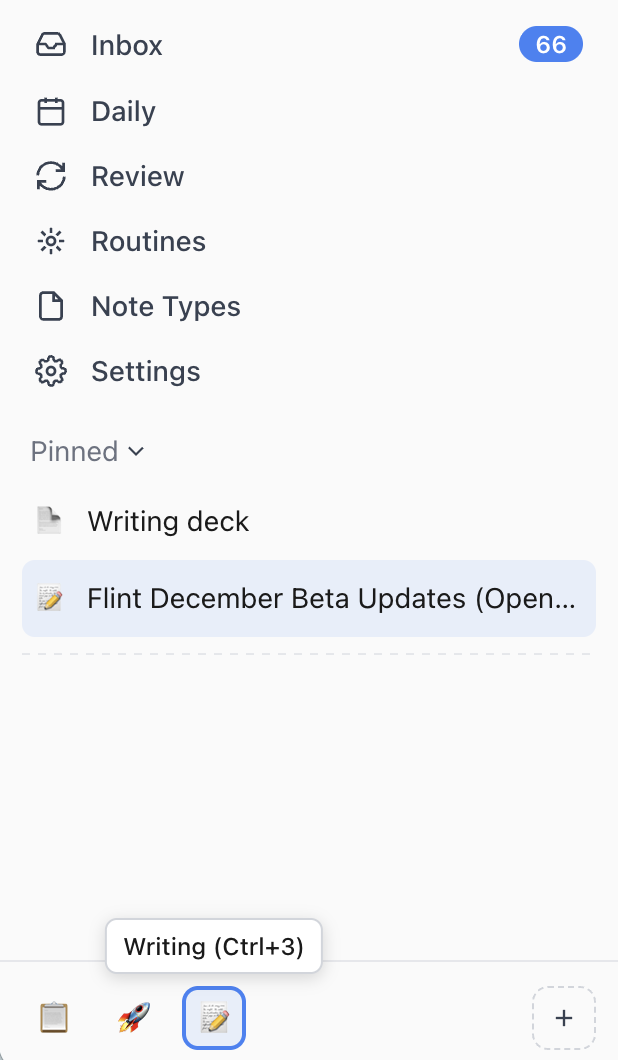
Writing (blog post drafts and supporting material)
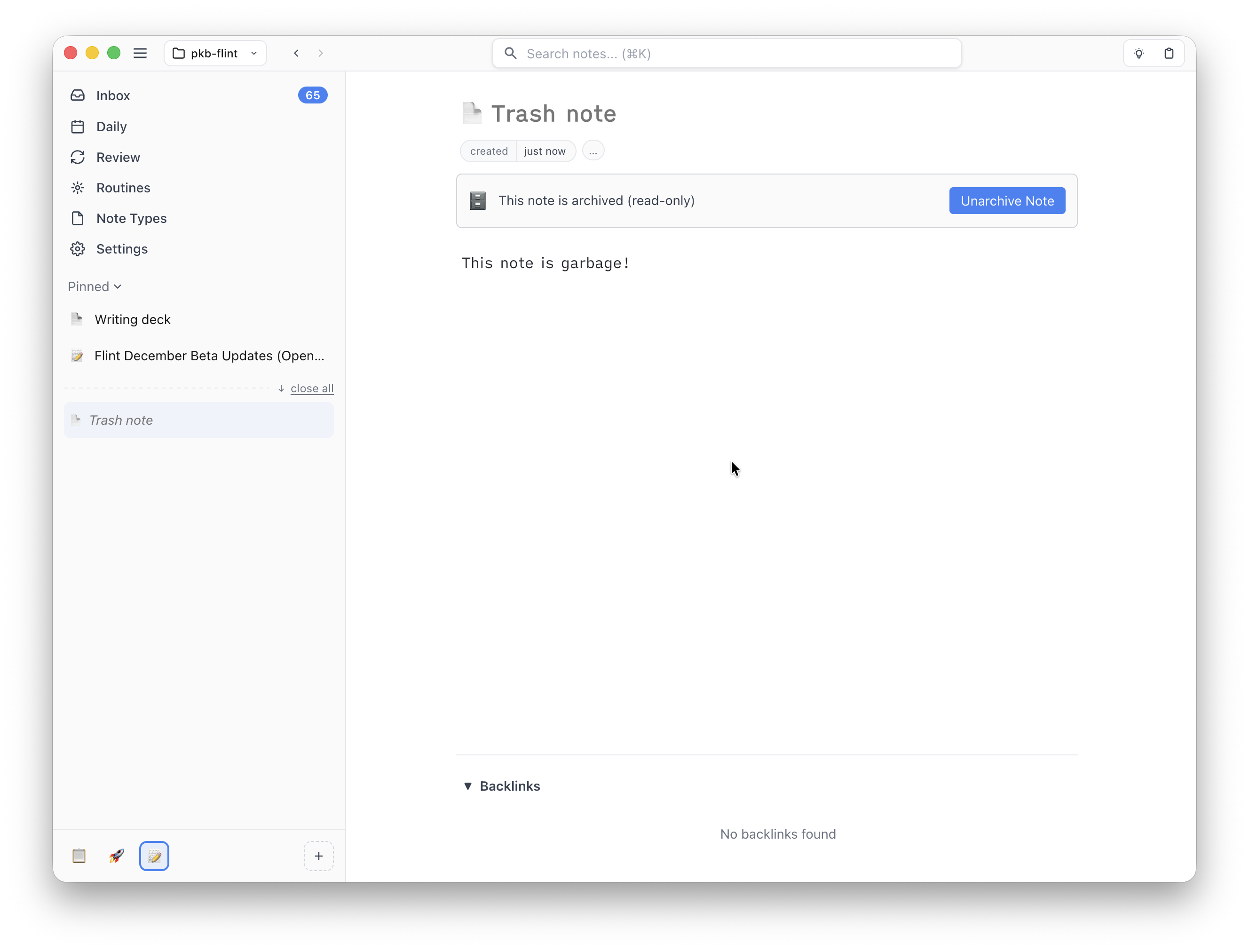
To keep your vault clean you can now archive notes. Archived notes are not deleted but will no longer show up in search or link autocomplete lists. All existing links to archived notes will still work, you just can't make any edits until you unarchive.
I've got big plans for more features as I work towards getting Flint ready for a 1.0 but the next few releases should be focused on polishing and responding to feedback. So try things out now and let me know how things are working (or not) for you.
We now have a bunch of places to drop feedback:
GitHub issues for reporting bugs and discussions for general questions or suggestions
As I wrote about in a previous post, a core design goal for Flint is to make externalization, the process of getting ideas out of your head, super simple. Easy note creation results in more notes and this is critical because it supports the other phases of deep knowledge (internalizing and resurfacing) by creating the raw material for you to work with (pure thoughts are hard to manipulate in an app!). Flint tries to accomplish this goal by minimizing the decision of where to start capturing ideas and deferring organization decisions that kill note-taking momentum.
So how does this work in practice?
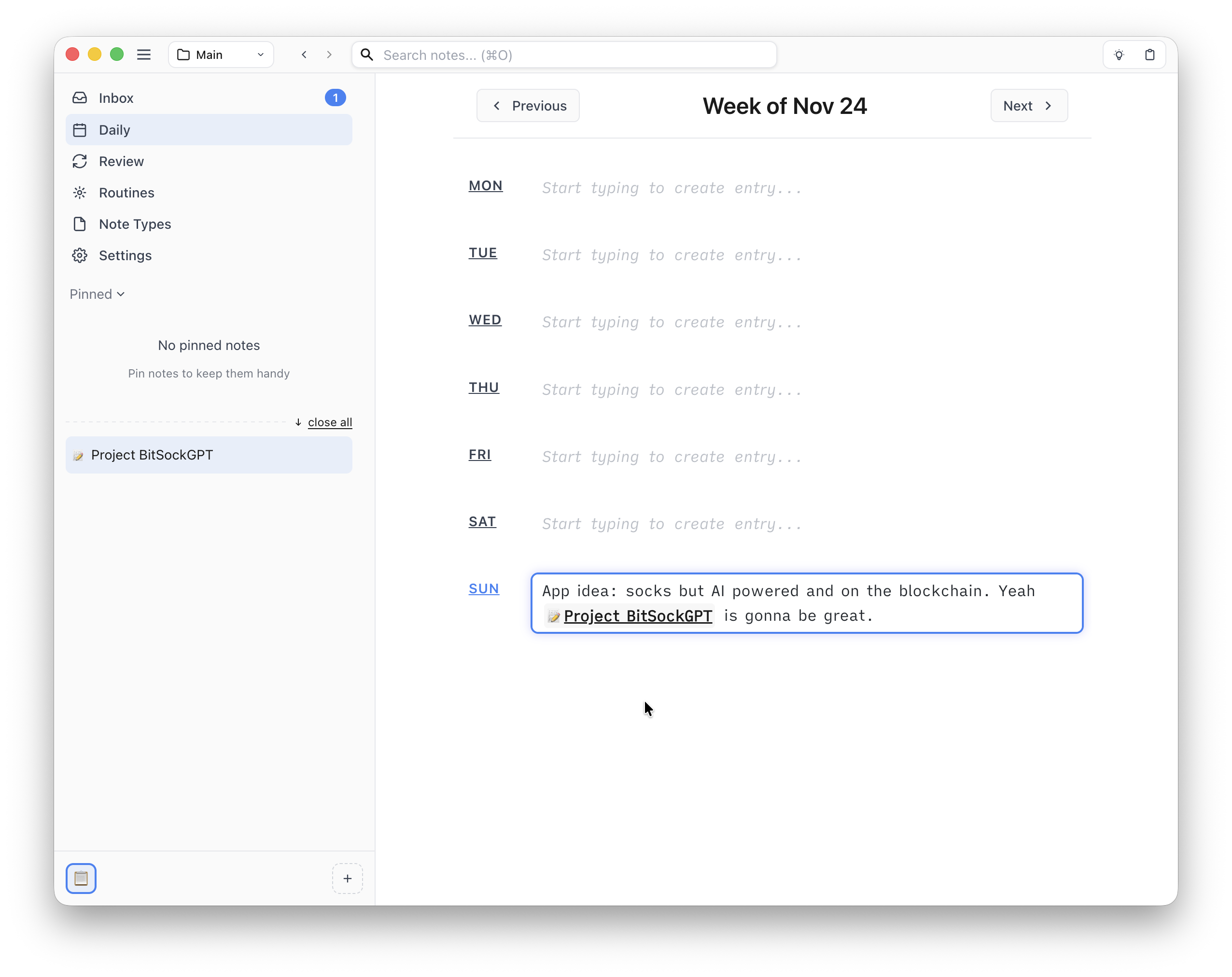
It starts with always having a zero-decision place to begin writing: the Daily view. When you open up Flint with a brilliant idea to capture, just open today's daily note (Cmd-2/Ctrl-2) and start typing.
The daily view displays all your other entries for the week at a glance, making it easy to reflect on what you've been thinking about recently while you write about today.
While capturing in the daily note, you'll start to identify concepts that are more concrete and deserves their own note. When that happens you can create a new note via the [[title of note]] link syntax while you're already typing or with the new note button (shortcut Cmd-Shift-N/Ctrl-Shift-N).
Flint doesn't force you to think about how to organize new notes up front. The note is just created immediately and you can keep typing.
You can decide what kind of note it should be or what metadata it needs later. You don't even need to pick a title; write first and organize later.
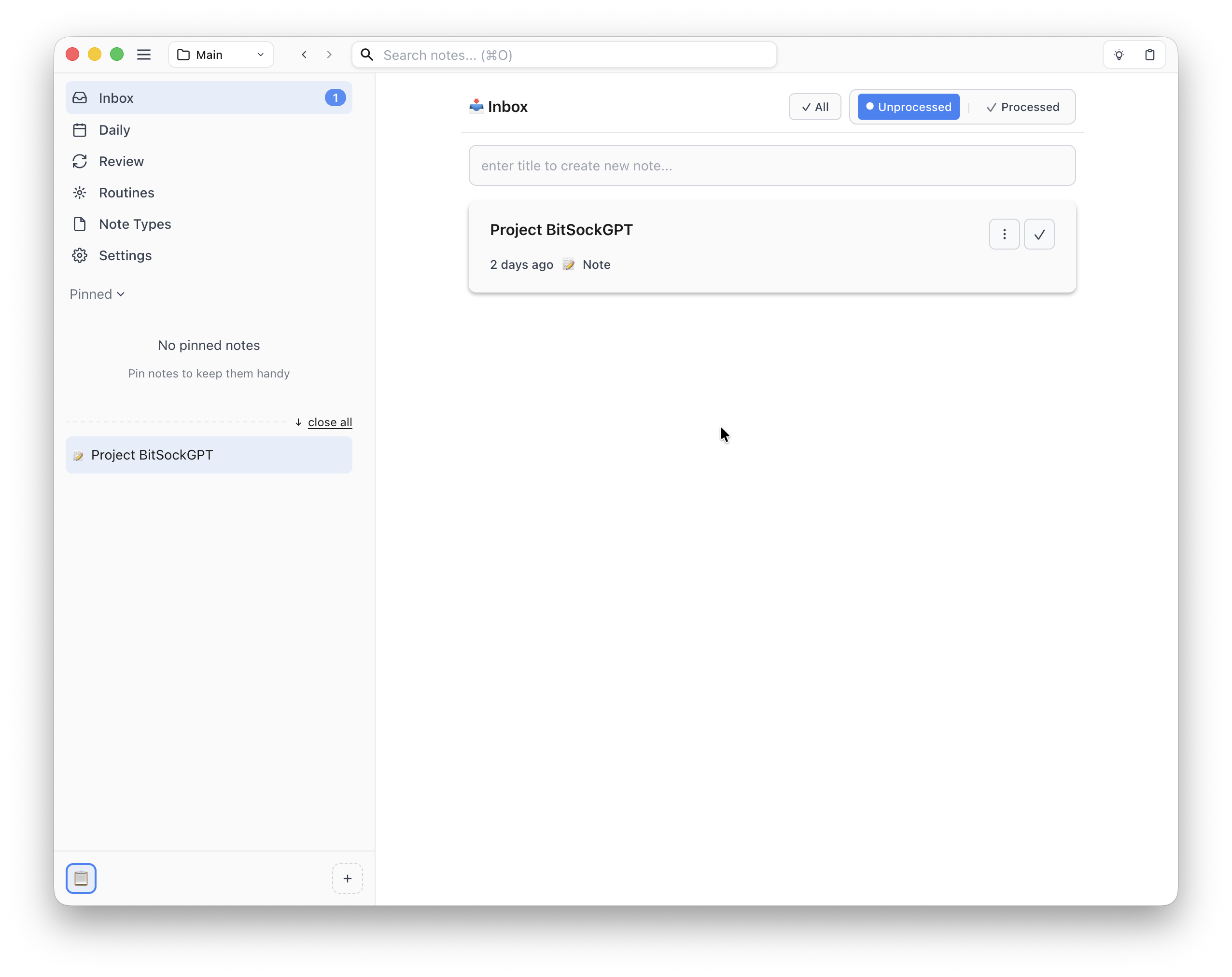
When you make a new note two other things happen: the note shows up in the "Recents" list on the left sidebar and it's added to the Inbox (notice the badge on Inbox).
The Recents and Pinned section of the sidebar are how you manage your open notes. Notes are added to the Recents list when you click on a link or create a new note. The Pinned list is for keeping track of notes you are working on. These lists are manually sorted (via drag and drop), which engages your spatial memory to help you keep track of where things are.
This design pattern isn't new, it draws inspiration from how Arc Browser manages tabs. The fundamental design concept is managing different time horizons for ephemeral items (recents) and items you keep for a longer period of time (pinned).
The Inbox is another way to help you manage notes across time. Each newly created note goes into the Inbox and has a button to mark it as "Processed", which removes it from the list.
The Inbox allows you to create a bunch of notes without interrupting your flow to organize immediately. Once you've done your initial externalization you can find all the notes you just created in the Inbox and then decide what to do with them later. The Inbox gives you a little routine to make small organizational decisions and prevents notes from falling through the cracks. It gives you confidence to make lots of notes and know that you'll get back to them when you are ready.
What I'm trying to accomplish with the design of Flint is the feeling of being confident to externalize. Writing things down should always feel effortless. From knowing where to start writing to feeling confident you'll be able to organize things later, nothing should slow you down.
If any of this sounds interesting definitely check out Flint, the beta is now open and you can download it here.
Note-taking apps are a bit weird. Most productivity apps you use every day have an obvious and tangible output that you spend all your time working towards. For example, the point of using Photoshop is to make an image. You spend all your time futzing with an image and eventually you get an image to use somewhere.
But the notes in a note-taking app are not really an output you directly use. Some people and systems approach them as if they were the goal but I think this is a mistake and explains why people often have bad experiences with note-taking apps.
So if not notes then what are we actually trying to achieve with a note-taking app? In a single phrase: deep learning (for humans, not the ML kind). The output we are looking for is the mental change that occurs via the process of note-taking that deepens our understanding about the things we care about: a topic of interest, ourselves, the world around us. By spending time taking notes we become smarter; our crystallized intelligence grows.
This means that a note-taking app is a cognitive tool, not a document manager. Most apps are built as the latter, which I think is why many people struggle with them.
So if the primary goal of a note-taking app is to deepen our understanding of the things we care about, how do we go about designing for that? Well, first we need to understand how learning works, which I think can be broken down into three main components:
Externalizing: Getting ideas out of your head and into a trusted system
Internalizing: Synthesizing what you've externalized into new insights and understanding
Resurfacing: Reinforcing your understanding through spaced retrieval and repeated engagement over time
These three processes feed on each other. Externalizing produces the raw material to internalize which sparks new ideas to be externalized while resurfacing what you've externalized and synthesized deepens your understanding and sparks new insights. Without all three you can get stuck. If you don't externalize, ideas are stuck in your head. If you only externalize, you're left with a bunch of notes that serve no one. If you don't resurface and review what you've externalized, your understanding is shallow and quickly fades.
Deep learning requires all three components working together in a virtuous cycle.
Where things go wrong for most note-taking systems is too much friction with one or more of these components. Friction during externalization keeps thoughts locked in your head. This might be due to an organization system that is too complex (too many options for creating a new note) or too simple (you don't trust the organizational system to find the note again). If you can't easily find and connect old notes, you miss the synthesis that deepens understanding. If the system doesn't support resurfacing those notes over time, your knowledge fades away. Designing a note-taking app around deep learning means minimizing friction at each of these stages.
While the goal of a good note-taking app should be to minimize the friction of the note-taking process, you can never completely eliminate it because some friction is learning. Having an LLM write your notes for example would be counterproductive, you skip the necessary friction that causes learning to occur. Actual learning requires the friction of articulating vague thoughts into precise language, the friction of recognizing connections between notes, the friction of intentional recall that reinforces and strengthens your memory.
A well-designed note-taking system minimizes accidental friction that gets in the way while preserving the productive essential friction that results in deep learning. It should feel natural and freeing to quickly capture thoughts as they come, knowing the system will help you find, organize, and revisit them later. It should resurface old insights to strengthen your memory and reveal new connections. It should amplify rather than replace your thinking.
This is the kind of system I'm trying to build with Flint, which is designed around the idea that note-taking is about deep learning and tries to minimize the accidental friction you encounter by:
using higher level abstractions in the UI than files and folders
making linking effortless
using Arc-style tabs that help you organize notes with your spatial memory
using a LLM agent to help with organization
using a LLM agent to resurface old notes to cement your memory
Over the next few weeks, I'll dive deeper into how Flint's design reduces friction and contributes to each of the components that enables that deep learning cycle in practice. But the core idea is simple: a good note-taking app should get out of the way while keeping you engaged with the friction that matters.
Flint is a new note-taking/thinking-system I’m working on that fixes a lot of the frustrations I’ve had with traditional note-taking apps (or at lest it will try to fix those frustrations 😅)
I’ve long been obsessed with note-taking systems in both paper and digital forms because I love the idea of a system that helps me think better.
At the start of this summer (after freeing up a bunch of my time) I started experimenting with how to best improve my personal note taking system using LLMs. One of the outcomes of those experiments was flint-note-mcp an MCP server that gave LLMs the ability to write and manage a directory of structured notes. It was an attempt to see just how far you could push note taking away from a UI. Just chat with any LLM and have the AI write your notes.
The MCP server was an interesting experiment but ultimately it made me realize two things. First, LLMs are magic and have serious potential but also they have a tendency to take over your thinking, which is the opposite of what you want in a good note-taking system. Second, I really needed a good UI.
So, I started working on Flint, an attempt to make a good UI that uses LLMs in a way that won’t harm your thinking.
I’ll write a bunch more about all of this but the main philosophy behind Flint is this:
You own your notes. Flint is plaintext-first. No lock-in and no complex formats that make migrating to a different system a pain. Flint just makes normal markdown files on your hard drive. Eventually I might add an optional sync system but your notes will always start as just normal text files on your computer that you control.
A UI that is humane. The UI should surface appropriate abstractions that respects the way you think. This means you mange notes rather than files and folders. The UI should give you a workspace where you can make a mess and also give you tools to clean it up.
Writing is thinking and you do the thinking. LLMs are incredible bits of magic but they can easily damage your thinking by automating your writing. Flint will incorporate LLMs and AI agents in a way that allows you to be ambitious with your thinking system without replacing the writing and thinking work that only you can do.
I’ve got a bunch more thinking, writing, and building to do but if this sounds interesting to you, go subscribe to the Flint newsletter where I’ll send out links to the beta when it's ready. If you have any questions just shoot me an email at tim@flintnote.com.
I watched the OpenAI livestream introducing GPT-5 today and had some thoughts.
First, the presentations were all oddly stilted and awkward. Most of the presenters seemed to be mimicking Sam Altman's affect. It was weird, like I'm not expecting them to be as polished as an Apple keynote (even then Apple has a spectrum of polish) but like maybe they could have done a few more run-throughs?
Second, they had blindingly obvious errors in some of their graphs. They had a bar chart where 52 was taller than 69, which was the same height as 30. Clear case of automation bias since I'm sure they had GPT-5 check for errors and it didn't catch it so the humans didn't either.
Third, one of the demos they had was of GPT-5 explaining the Bernoulli principle in relation to how flight works. It made a web visualization showing how lift is created based on the principle and how air travels over a wing. The wild thing is that the Wikipedia page on the Bernoulli principle calls out how this is a common misconception. Now, maybe the details of the demo were actually correct but it was hard to tell from just watching (Hacker News had a good time nerdsnipping themselves over it). Strange that they went with this example because it's so fraught with misconceptions and easy to get (subtly) wrong.
Also, not a huge point, but they kept saying how GPT-5 was like having a PhD in your pocket. As a PhD haver who has worked with plenty of other PhD havers, this is just so funny. Like I get what they are trying to communicate (it's so smart!) but it's not nearly as impressive as it sounds (in the same way that Bruce Banner having 7 PhDs is supposed to read as smart but is completely absurd). People really need to understand that a PhD does not make you smart.
I've been experimenting with trying to build a plain-text GTD system with Flint. I started by just creating a todo note type with a couple of simple metadata fields (e.g. status, due date, etc.) with agent instructions to keep things concise and action-oriented.
Creating and updating todos then happens conversationally:
Me: make a todo to schedule a dentist appointment today
Agent: Done.
Later in the day:
Me: mark dentist appointment done
Agent: Updated.
My favorite part of this approach is you can then ask the agent "what should I be working on today" and it's generally smart enough to look through all your todos but also other kinds of notes (daily logs, project notes, etc.) and give you a pretty intelligent response.
This is fine but gets awkward to update multiple items at a time. What I wanted was a way of seeing and updating multiple todos at a time while still keeping the benefits of text and agent smarts. So I just asked Flint to make me a special note that it would keep in sync:
Me: create a todo note that is special called "today", it should:
list all the other todo items that should be worked on today
format items like - [ ] todo item.
update agent instructions to update this note when updating other notes
when the note has items checked off, synchronize with corresponding note status
have a section called "Quick Add New Tasks" to easily add new items
each todo should be in one of three states: now (I want to focus on working on it today), upcoming (ready to be worked on soon), someday (a backlog of stuff to plan out eventually)
the today note should group by status but not show all the someday tasks (just show a count)
items in the now section should be written like - [ ] + todo item and items in the upcoming sections are written like - [ ] todo item.
when syncing the today note look for changes to the + to move items from the now state to the upcoming or vice versa
Flint then made a "todo" note that looks like this:
# Today - [Current Date]## NOW (Focus on today) 🎯- [ ] + Finish quarterly report draft
- [ ] + Review team feedback on project proposal
- [ ] + Schedule dentist appointment
- [ ] + Follow up on client contract (OVERDUE)
## UPCOMING (Ready to work on soon) 📋- [ ] Plan next week's team meeting (Due: Friday)
- [ ] Update budget spreadsheet (Due: End of month)
- [ ] Research new project management tools
## Quick Add New Tasks*Add new todo items below - use + for NOW, - for SOMEDAY, no symbol for UPCOMING*- [ ]
- [ ]
- [ ]
Now I can easily check off (e.g. change [ ] to [x]) multiple items and then ask Flint to sync the note and it will update each todo note as completed and refresh the today note.
A day's interaction could look something like this:
Morning (9:00 AM):
User opens Today note, sees:
- [ ] + Write project proposal
- [ ] + Call insurance company
- [ ] Review budget numbers (Due: Thursday)

User adds + symbol to "Review budget numbers":
- [ ] + Review budget numbers (Due: Thursday)

System automatically:
- Updates individual todo note workflow_state to "now"
- Moves task to NOW section in Today note
Midday (1:00 PM):
User checks off completed task in Today note:
- [x] + Write project proposal ✅

System automatically:
- Updates individual todo note status to "completed"
- Adds completion timestamp
- Moves to "Recently Completed" section
Evening (6:00 PM):
User adds new task to Quick Add section:
- [ ] + Book flight for conference

System automatically:
- Creates new individual todo note: "Book flight for conference"
- Sets workflow_state to "now" (because of + symbol)
- Adds to NOW section in Today note
- Clears the Quick Add entry
I think this is pretty cool, you can build an approximation of a full-fledged GTD app like Things or OmniFocus in plain text just by writing down a few simple instructions.
Another neat thing is I built this workflow conversationally. My example above defined the today note in one instruction but I actually went back and forth with the agent a bunch to narrow down how the today note should best be structured.
This bidirectional sync between plain text and AI agents feels like a fundamental building block. You get the benefits of structured data and automation while keeping the flexibility and ownership of plain text. I suspect this pattern will be useful beyond task management.
 Tim Disney